InPix Pro is premium photo editing software built for photographers, studio designers, album designers, and anyone who needs fast image enhancement without spending a long time adjusting dozens of Photoshop controls manually. Its main advantage is a workflow centered around one-click photo finishing, automatic color correction, lighting adjustments, portrait retouching, and batch processing. Designers looking for other professional editing tools can also explore the premium software and plugins collection for additional resources.
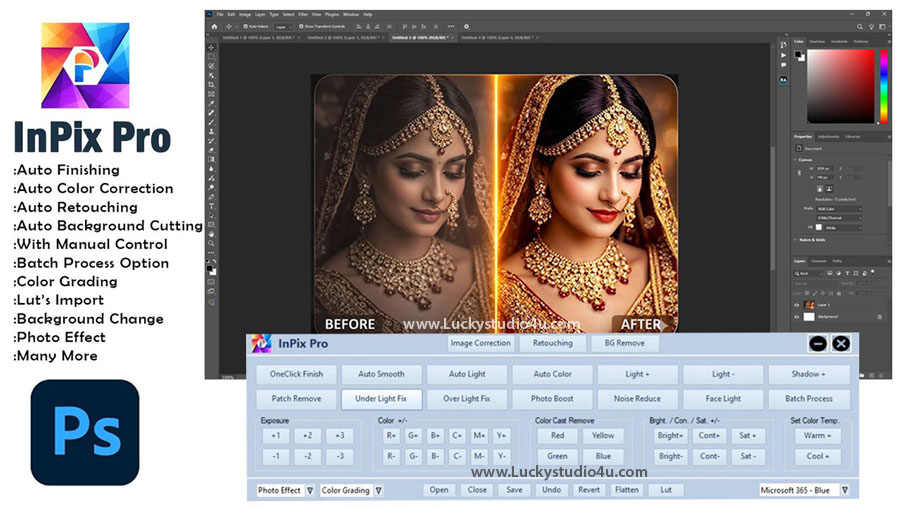
For wedding and portrait photography, large image collections often need similar improvements across many photographs. Exposure may need balancing, colors may look slightly warm or cool, faces may require light retouching, and small distractions can reduce the overall finish. InPix Pro brings these common editing tasks into a practical workflow so that routine corrections can be completed quickly.
The software is compatible with Adobe Photoshop CC 2020 through CC 2026, making it suitable for photographers and designers working with current Photoshop-based editing workflows. It includes tools for color correction, exposure, noise reduction, face enhancement, retouching, color cast removal, and background removal. The result is a feature set aimed at everyday photography work rather than complicated editing processes that require advanced technical knowledge.
What Is InPix Pro Photo Editing Software?
InPix Pro is a premium photo editing software designed around speed and practical image correction. Instead of relying entirely on manual adjustments, the software provides automatic tools that can handle common image problems with minimal effort. This makes it useful for studio environments where hundreds of wedding, portrait, or event photographs may need consistent finishing.
The One Click Photo Finishing feature is at the center of the workflow. A single finishing action can be used as a starting point for improving an image, after which individual controls can be adjusted when a particular photograph needs more attention. This approach is especially useful for photographs that are already close to the desired result but need a cleaner and more balanced finish.
Color correction is another important part of the software. Different cameras, lighting conditions, indoor environments, and mixed light sources can produce inconsistent color. InPix Pro includes automatic correction along with manual controls for brightness, contrast, saturation, RGB, CMY, color temperature, and color cast removal.
InPix Pro Video Tutorial
To make things even easier, you can follow the complete video tutorial included in this article. The video shows how to use InPix Pro step by step, including image correction, face retouching, and background removal. It helps beginners understand each tool clearly and shows real-time editing results. By watching the tutorial, you can quickly learn how to apply one click finishing, adjust colors, and use retouching features effectively. This makes the learning process simple and helps you get professional results without any confusion.
Why Photographers Use One Click Photo Finishing
Photo finishing is often less about applying dramatic effects and more about making an image look balanced, clean, and ready for the next stage of production. Wedding photographers, for example, may work with hundreds or even thousands of photographs captured under changing lighting conditions. Editing every frame from scratch can quickly become inefficient.
One click processing provides a practical way to establish a consistent starting point. A photograph with weak contrast, uneven exposure, or dull color can receive an automatic enhancement before more detailed corrections are applied.
This workflow can be particularly useful for album designers who receive photographs from different sources. The images may vary in brightness, skin tone appearance, color temperature, and overall contrast. A consistent finishing process helps bring the collection closer together before photographs are placed into an album layout.
At the same time, automatic correction should not replace visual judgment. Wedding photography includes bright dresses, dark suits, skin tones, colorful decorations, and different light sources. A strong workflow combines automatic enhancement with manual adjustments when a particular image requires additional correction.
InPix Pro Color Correction and Lighting Tools
Auto Photo Color Correction
Auto Photo Color Correction is designed to improve color balance without requiring extensive manual adjustment. It can be useful for photographs where colors appear slightly off because of the shooting environment or lighting conditions.
Color correction is especially important in wedding photography because skin tones and clothing colors need to remain natural. Excessive correction can create unrealistic skin or overly saturated wedding decorations, so the automatic result can be followed by manual refinement when necessary.
Auto Light and Exposure Adjustment
Lighting problems can make an otherwise strong photograph look flat or too dark. The Auto Light and Exposure tools provide a faster way to bring an image toward a more balanced brightness level.
These adjustments can be helpful when a collection contains photographs captured at different times of the day. Outdoor portraits, indoor ceremonies, reception halls, and stage photography often have noticeably different exposure characteristics.
Brightness, Contrast and Saturation
For more direct control, InPix Pro includes traditional Brightness, Contrast, and Saturation adjustments. These settings remain useful even when automatic tools have already been applied.
Brightness can help correct an image that still needs slight light adjustment, contrast can improve separation between highlights and shadows, and saturation can be used to control overall color intensity. Small changes are generally more useful than aggressive adjustments when the goal is a natural professional finish.
Noise Reduction
Low-light photography can introduce grain or digital noise, particularly in photographs captured at higher ISO settings. The Noise Reduction tool helps clean up these images before they are used in portraits, wedding albums, or online galleries.
Noise reduction needs to be balanced carefully because excessive processing can remove fine details. Hair, eyelashes, fabric texture, and jewelry are examples of areas where too much smoothing can reduce image quality.
Face Enhancement and Portrait Retouching
Portrait photography often requires a different type of finishing from general image correction. A wedding portrait may have good exposure and color but still need small facial adjustments before it is placed into a premium album.
InPix Pro includes several tools aimed specifically at portrait enhancement. Face Light can help brighten facial areas, while retouching tools can address common skin and facial imperfections without requiring a complicated manual workflow.
Pimple Remove and Wrinkle Remove
The Pimple Remove and Wrinkle Remove tools are designed for targeted portrait cleanup. These features are useful for reducing temporary skin imperfections or softening visible lines while preserving the overall appearance of the face.
Good retouching should remain subtle. The purpose of wedding portrait editing is normally to improve the photograph while keeping the subject recognizable and natural.
White Teeth and Eye Enhancement
Teeth and eyes can have a strong effect on the appearance of a portrait. White Teeth and Eye Enhancement tools provide dedicated controls for these areas instead of relying entirely on general adjustments.
These corrections can be useful for close-up bridal portraits, couple photographs, studio portraits, and other images where facial details receive more attention.
Lip Enhance, Lip Liner and Eye Shadow
In addition to corrective retouching, the software includes portrait-focused cosmetic effects such as Lip Enhance, Lip Liner, and Eye Shadow. These tools can be useful when a portrait requires small makeup-related enhancements or more visual definition.
Hair Dark and Jewellery Highlight
Hair and jewelry can become visually weak when lighting is flat or the original photograph lacks separation. Hair Dark can add more definition to hair areas, while Jewellery Highlight can help decorative details stand out more clearly.
These tools are particularly relevant to wedding photography, where bridal jewelry, hair styling, dresses, and makeup are important parts of the final portrait presentation.
Advanced Color Adjustment in InPix Pro
Automatic correction works well for routine editing, but experienced designers often need more specific control. InPix Pro provides advanced color adjustment options using RGB and CMY controls, allowing more detailed changes than basic saturation or brightness sliders.
RGB adjustments can be useful for controlling the balance of red, green, and blue components, while CMY controls provide another way to influence the color relationships within the photograph. These settings can be helpful when an image has a subtle color imbalance that automatic correction does not fully resolve.
Color Cast Remove
Mixed lighting can create unwanted color casts. A photograph may appear too red, yellow, green, or blue even when its overall exposure is acceptable. The Color Cast Remove feature provides dedicated correction options for these common problems.
Color cast correction can be particularly valuable for indoor wedding photography, where artificial lighting can change the appearance of skin tones and white clothing. Bridal dresses and shirts are useful visual references because unwanted color shifts are often easier to notice in neutral areas.
Warm and Cool Color Temperature
Color temperature can change the mood and appearance of an image. Warm adjustments can produce a more golden appearance, while cool adjustments can reduce excessive warmth and create a cleaner look.
The temperature control gives photographers more freedom to match photographs within the same album. Consistency matters because a sequence of pages can look disconnected when each image has a noticeably different color temperature.
Under Light and Over Light Fix
Exposure problems do not always appear in the same way. Some photographs are too dark because of insufficient lighting, while others lose detail because highlights become excessively bright.
InPix Pro includes separate Under Light Fix and Over Light Fix options for these situations. These tools can provide a quicker starting point when an image needs corrective exposure work before detailed finishing.
For wedding photographers, this can be useful across a mixed collection containing indoor ceremony photographs, outdoor portraits, reception images, and stage shots. Each environment creates different lighting challenges, so having dedicated correction options can make routine processing more manageable.
Patch Remove for Unwanted Details
Small distractions can become especially noticeable in portraits and album photographs. Patch Remove is designed to help clean up unwanted spots or minor visual distractions from an image.
Typical retouching work may include removing small marks, unwanted spots, or distracting elements that take attention away from the main subject. For album design, this can improve the appearance of photographs before they are placed into a finished spread.
Batch Processing for Multiple Photos
Batch Processing is one of the most practical features for professional photography workflows. Editing a single image is straightforward, but applying similar improvements across a large collection can consume a significant amount of time.
Batch processing allows multiple photographs to be handled as part of a more efficient workflow. This can be useful for wedding events, school photography, studio portrait sessions, engagement shoots, and other assignments where many photographs require routine finishing.
A sensible workflow is to review the results after batch processing and make additional adjustments only where needed. Photographs captured under unusual lighting or with special artistic requirements may still benefit from individual editing.
One Click Background Remove
Background removal is another useful part of the InPix Pro feature set. The One-Click Background Remove feature is designed to separate the main subject from the original background with minimal manual work.
Background removal can be useful for portrait compositions, promotional images, wedding graphics, social media content, and album design projects where a subject needs to be placed over a different background.
For album designers, this type of tool can also help prepare selected portraits for creative page layouts. Once a subject has been isolated, it can be combined with decorative backgrounds, frames, textures, or other design elements inside the overall project workflow.
How InPix Pro Fits Into a Photoshop Workflow
InPix Pro is compatible with Adobe Photoshop CC 2020 to CC 2026, which makes it relevant for designers already working with Photoshop-based production. Photoshop remains highly capable for detailed compositing and design work, while specialized correction features can speed up repetitive photo finishing tasks.
A practical workflow can begin with basic image selection and organization, followed by automatic finishing and color correction. Portrait-specific images can then receive retouching, while photographs requiring special color treatment can be adjusted manually. Final photographs can be taken into the album design stage after the image correction process is complete.
This approach is useful for wedding album designers because photo editing and album layout are closely connected. Clean, balanced photographs are easier to position within a 12×36 spread, and consistent color across a collection helps the final album feel visually cohesive.
Photographers interested in comparing different photo correction workflows can also explore ColorTune AI photo color correction software. Both tools address photo enhancement, but workflow preferences and required editing features may differ from one project to another.
Who Can Benefit From InPix Pro?
InPix Pro is designed for a broad range of photography users, especially those who regularly handle repetitive correction and retouching work.
- Wedding photographers: Useful for finishing large sets of wedding photographs before delivery or album production.
- Studio designers: Practical for routine portrait correction and image preparation.
- Wedding album designers: Helpful when photographs need consistent exposure, color, and basic retouching before entering an album layout.
- Portrait photographers: Dedicated face and cosmetic tools can simplify common portrait adjustments.
- Beginners: Automatic tools provide a simpler starting point for basic photo enhancement.
- Professional editors: Manual color and correction controls provide additional flexibility when automatic results need refinement.
- High-volume photography workflows: Batch processing can reduce repetitive work when many images require similar finishing.
InPix Pro for Wedding Album Designers
Wedding album production involves more than arranging photographs on a page. Before an image reaches the layout stage, it may need exposure correction, color balancing, portrait cleanup, or background preparation.
This is where InPix Pro can fit into the workflow. A designer can first prepare the selected photographs, correct obvious issues, and perform portrait retouching before placing the finished images into an album design. This separation between photo preparation and layout work can make the overall process easier to manage.
Consistent finishing is also important when photographs from different parts of an event are placed on the same spread. One image may come from a bright outdoor location, while another may have been captured inside a dim reception hall. Balancing these photographs before layout work helps maintain a more consistent visual appearance.
For designers working specifically with album production, StudioPK also provides resources in its design and creative resource collections, while wedding-focused software workflows can be explored through the album design software section on LuckyStudio4U.
Tips for Getting Better Results With InPix Pro
Automatic editing works best when it is treated as part of a workflow rather than a replacement for image evaluation. The following practices can help maintain better results across a professional collection:
- Review the original photograph before applying heavy correction.
- Use one-click finishing as a starting point when the image already has reasonable exposure.
- Check skin tones carefully after automatic color correction.
- Avoid excessive saturation on wedding clothing, flowers, and decorative backgrounds.
- Use portrait retouching tools subtly so facial features and natural skin texture remain believable.
- Review noise reduction at full image size to make sure important details remain intact.
- Use RGB, CMY, and color temperature controls for images that need more precise correction.
- After batch processing, inspect representative photographs rather than assuming every image requires identical treatment.
- Keep original photographs available so heavy corrections can be revisited when necessary.
- Check final photographs at the intended output size before using them in print or album production.
Frequently Asked Questions About InPix Pro
Q: Is InPix Pro free or premium software?
A: InPix Pro is premium photo editing software designed for photographers, studio designers, album designers, and other image editing users.
Q: Which Photoshop versions are compatible with InPix Pro?
A: InPix Pro is compatible with Adobe Photoshop CC 2020 through CC 2026.
Q: Does InPix Pro support batch photo processing?
A: Yes. InPix Pro includes Batch Processing for handling multiple images as part of a faster photo editing workflow.
Q: Can InPix Pro be used for wedding photography?
A: Yes. Its photo finishing, color correction, lighting adjustment, portrait retouching, and batch processing tools are suitable for wedding photography and album preparation workflows.
Q: Does InPix Pro include background removal?
A: Yes. InPix Pro includes a One-Click Background Remove feature for image editing workflows that require subject isolation.
Conclusion
InPix Pro brings several of the most common photography editing tasks into a workflow built around speed and practical control. Its One Click Photo Finishing, Auto Photo Color Correction, lighting adjustments, noise reduction, portrait retouching, advanced color controls, batch processing, and one-click background removal make it suitable for photographers and studio designers who regularly process large collections of images.
For wedding photographers and album designers, the software can be particularly useful during the preparation stage before photographs move into the final album layout. The ability to combine automatic corrections with manual controls gives the editing process flexibility, while compatibility with Adobe Photoshop CC 2020 to CC 2026 makes it suitable for Photoshop-based workflows. As a premium solution, InPix Pro is intended for users who need a faster and more focused approach to everyday photo finishing and retouching.